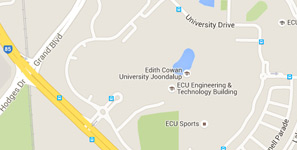
To book a room, visit ECU Spatial Information System (ECUSIS) and log in using your ECU login.
(You can also find the ECUSIS link located in your student portal's 'easy logins' list.)
- Select Room Bookings.
- Select JO Library (Joondalup) or BU Library (Bunbury) for room locations.
- Select the room you would like to book.
- Select the day and time you would like, click on the selected start time and drag down to cover the timeslot you would like to book. (2 hour booking per day only. If you'd like to book separate one-hour blocks in the same day bookings must be a minimum of one hour apart to accommodate other students. Bookings that don't abide by this are cancelled).
- In the Meeting Title box type in your student number.
- Click Make Booking.
- Your room is now booked. You will be sent a booking receipt to your student email account. Note: If you do not receive a receipt, an error may have occurred and the room is not booked.
- Log off from the booking system.
You can also view a video on how to book a study room.